


Parent Portal
3.48.00 Reviews
App Specs
- Version
- 8.748.0
- Updated On
- License
- Free
- Downloads
- 50,000+
- Developer
- Parenta Group Ltd
- Categories
- Parenting
- Platform
- Android
Screenshots

 Analysis by AppCompare
Parent Portal is the kind of parenting app I would approach with one clear expectation: it is meant to put information about a child’s care in one secure place, rather than replace every conversation with a nursery or childcare provider. Its purpose is practical. Parents can use it to reach their child’s records directly, check what has been shared, and stay closer to day-to-day information without depending entirely on paper notes or scattered messages.
I found that its value depends heavily on how the child’s setting uses the service. The app is developed by Parenta Group Ltd and sits in the parenting category, with a free download and an Everyone age rating. That makes it approachable for families who want to try it without committing to a subscription at the point of installation. Still, “free” does not mean it will be useful in isolation: the meaningful information comes from the connected childcare environment.
There is also a useful distinction between this app and a general family organizer. Parent Portal is not primarily a shared calendar, a baby tracker, or a private notebook for parents. It is better understood as a doorway into child-related information supplied through a participating setting. The first successful result is not simply opening the app; it is reaching the correct child record and understanding what the setting has made available there.
What to expect before you begin
On opening Parent Portal for the first time, I would expect a functional rather than decorative experience. The store short description calls it “Parent Portal,” while its longer purpose is direct and secure access to a child’s data. That wording gives a better idea of how to judge it: look for clarity, reliable access, and a sensible route to the relevant record, not entertainment or a large collection of parenting tools.
The app has been available since January 2017 and has reached over 50 thousand installs. Its average rating is 3.4 from around 120 ratings, with around 8 written reviews. I would read that rating as a reason to keep expectations realistic. It suggests that the basic idea is useful to some families, but the experience may not feel equally smooth for everyone. In this type of app, account connection and the quality of information entered by the childcare provider can affect the experience as much as the app itself.
Parent Portal currently uses version 8.748.0 and requires Android 6.0 or later. That is worth checking before asking another family member to install it on an older phone. The practical advantage is that the app does not appear to demand a modern flagship device simply to perform its central job. The more important preparation is having the details supplied by the child’s setting close at hand, because access is tied to the relationship between the parent, the child, and the participating provider.
I would also decide in advance what I want to accomplish during the first session. A vague goal such as “look around” can leave a parent unsure whether the app is working. A better goal is concrete: sign in, locate the child’s profile, and identify where the latest available information appears. If that path works, the installation has already produced a meaningful result.
Worth Reading Before You Choose

EA SPORTS FC Mobile 26 Is a Bigger Football Game, but It Takes Time

Flipboard Shows What News Apps Must Do Beyond the Feed

Switching to Android Auto Means Rethinking Your Driving Routine

Google Calendar Makes a Crowded Week Easier to Manage

Ludo King Makes the Most of the Minutes Between Plans

Baby Panda World Brings Quick Play to Modern Phones, but Its Game Library Feels Busy
Preparing for a calm first setup
Before installing, I recommend confirming that the childcare provider actually uses Parent Portal and that the parent details they hold are current. This is not busywork. If the setting has an outdated email address, an incorrect contact detail, or a child record that has not yet been connected, repeatedly trying different passwords will not solve the real problem.
I would install the app on the phone I use most often for family administration, rather than on a spare device that stays at home. The point of a portal is to make relevant information available when it is useful, such as during a quick conversation with another caregiver or while arranging the child’s routine. At the same time, I would avoid installing it casually on several devices before the first login works. Keeping the initial setup to one device makes it easier to identify whether a problem comes from the account or from a particular phone.
Because the app deals with child-related information, I would treat the login as a personal account rather than something to pass around informally. If another caregiver needs access, it is better to follow the arrangement used by the childcare setting than to share one sign-in without thinking. This is one of the less obvious trade-offs of a secure portal: convenience for a household has to be balanced against knowing who can view the child’s information.
My first-session checklist would be short:
- Confirm that the setting uses Parent Portal.
- Use the parent contact details recognized by that setting.
- Install it on the phone that will actually be used.
- Reach the child’s record before spending time exploring.
- Note where the app presents newly available information.
This approach avoids a common mistake: judging the app after only seeing a sign-in screen. Parent Portal cannot demonstrate its main benefit until the account is connected to the right child and provider.
Reaching the first meaningful success
For me, the first meaningful action would be opening the correct child profile and checking one piece of information that matters to the family. That might be reviewing an available update, confirming that the child’s record is present, or simply verifying that the portal is linked to the correct setting. The exact content can vary because the provider controls what is shared, but the workflow remains useful: authenticate, identify, verify.
I would not rush past the identity check if more than one child is associated with the household. A portal can be convenient precisely because it centralizes information, but centralization also makes careful checking important. Before acting on anything, look at the child’s name or profile context and make sure the information belongs to the right person. This is a small habit, yet it prevents the kind of confusion that can arise when several family records sit behind one account.
A realistic everyday example would be a parent collecting a child after a busy morning. Instead of searching through old messages, the parent opens Parent Portal and checks the latest information the setting has made available. If the record is visible and understandable, the app has done its job. It has not replaced speaking to staff when a question is important, but it has reduced the need to reconstruct routine details from memory.
That distinction matters. I would use the app to access information, not as proof that nothing else needs to be asked. A portal can show what has been entered or shared, while a direct conversation remains the better choice for a sensitive concern, an urgent change, or anything that looks incomplete. The safest workflow is to use the app as a reference point and contact the setting when the record does not answer the actual question.
One practical tip is to make the first successful check part of a normal routine rather than opening the app constantly. For example, a parent might review the portal at a predictable point in the day, then stop. This reduces notification fatigue and keeps the tool focused on useful information instead of turning it into another source of background checking.
Where first-time users may become confused
The most likely confusion is assuming that installing the app automatically creates access to a child’s information. It does not make sense to treat Parent Portal like a standalone tracker where a parent enters everything manually. Its usefulness comes from the connection with the child’s setting. If the account opens but the expected record is missing, I would first check the provider relationship and contact details before repeatedly reinstalling the app.
Another point of confusion is the difference between app access and data availability. Successfully signing in does not necessarily mean that every update a parent expects will immediately appear. The app can provide a route to information, but the setting still determines what is recorded and shared through that route. This is why I would avoid interpreting an empty or quiet area as automatic evidence that something has gone wrong.
Parents may also wonder whether the app is a replacement for direct communication. In my view, it is not. The secure-access idea is valuable for routine visibility, but it should sit beside normal contact with childcare staff, not eliminate it. If a child is unwell, a collection arrangement changes, or an entry seems inconsistent, I would use the most direct communication channel available rather than relying on a portal alone.
There is a similar issue with household sharing. One parent may assume that because they can see the record, every other caregiver can see it too. I would not make that assumption. Access arrangements can be personal, and the correct solution for a second parent or guardian should come from the childcare provider’s process. Sharing a device or login may be quick, but it can make it harder to know who has access and which account is responsible for changes.
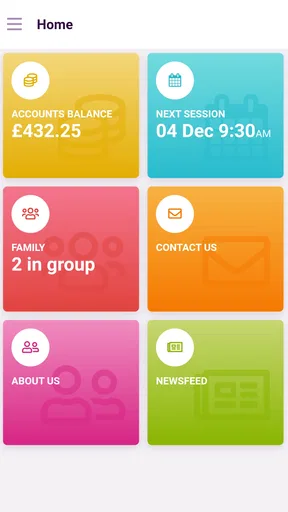
If the app feels less polished than a consumer finance or messaging app, that does not automatically make it unsuitable. Its job is narrower. However, parents who expect a rich dashboard, extensive reminders, or a full family management suite may feel disappointed. The app is strongest when the need is direct access to child information from a participating setting. It is a weaker choice for families looking for broad planning tools, developmental activities, meal logging, or a private journal.
How it compares with familiar alternatives
The usual alternatives are paper notes, email, messaging groups, phone calls, and general family organizer apps. Parent Portal has a different advantage from each of them. Paper can be misplaced, messages can become buried, and a general organizer usually depends on parents entering the information themselves. A connected portal offers a more focused path to information associated with the childcare setting.
That focus is also its limitation. A messaging conversation is often better when a parent needs an immediate answer or wants to explain an unusual situation in detail. A phone call is more appropriate for something urgent or sensitive. A family calendar is better for coordinating grandparents, appointments, and household commitments. Parent Portal should not be forced to replace those tools simply because it occupies a place on the phone.
Compared with a manually maintained baby or child-tracking app, the main trade-off is control. A personal tracker lets the parent decide what to record and how to organize it. Parent Portal is more useful for information connected to the childcare setting, but the parent does not control the whole flow. That makes it less flexible as a personal diary and more valuable as a shared access point.
I would choose this app over scattered messages when the childcare provider actively uses it and the family mainly wants a dependable place to check the child’s available information. I would choose a general organizer instead when the main problem is coordinating the household. I would choose direct contact instead when the issue is urgent, emotionally sensitive, or not clearly represented in the portal.
Small habits that make the portal more useful
My first useful habit would be to verify the child context every time the account covers more than one child. This takes only a moment and is more important than quickly tapping through screens. A second habit would be to separate “the app has no new information” from “the app is broken.” If the record opens normally but looks unchanged, the next action should be to consider whether the setting has posted anything, not to reset the account immediately.
A third habit is to keep a short note of the provider’s preferred support route. When access fails, the fastest solution may depend on the setting confirming or correcting the account connection. Without that context, parents can lose time repeating local troubleshooting that the app cannot resolve on its own.
I also think it helps to use the portal for confirmation rather than constant surveillance. A parent might check an update before collection, then discuss anything unclear in person. This creates a sensible division of labor: the app handles convenient access, while people handle interpretation and exceptions.
Finally, I would review whether the app is still serving the family’s actual need after the first few uses. If it reliably provides the setting’s information, it earns a regular place in the routine. If the family mainly needs appointments, shared shopping lists, or instant conversation, another tool will be more suitable. The fact that Parent Portal is free makes trying it low-risk, but it does not make it the right answer for every parenting workflow.
Who should use it and who should skip it
Parent Portal is a good fit for parents whose child attends a setting that uses Parenta’s portal and who want a direct route to the information connected with that care. It is especially sensible for families tired of searching through paper records or long message threads, provided they understand that the provider’s participation is central to the experience.
I would also recommend it to families who value a clear boundary between childcare information and their broader personal apps. Keeping provider-related records in a dedicated portal can be easier to understand than mixing them with a private notes app or a household calendar.
I would skip it, or at least avoid relying on it as the main tool, if the childcare setting does not use the service, if the family needs real-time conversation, or if the goal is to track information independently at home. It is also not the best match for someone expecting a complete parenting platform with built-in planning and lifestyle features.
The app’s Everyone rating makes it broadly approachable, but age suitability is not the same as account suitability. The adult responsible for the child should still think carefully about device access, household sharing, and how the information will be used. Secure access is most helpful when the family treats it deliberately.
My recommendation after using it
I see Parent Portal as a focused utility rather than an all-purpose parenting companion. Its strongest moment is simple: the right parent opens the app, reaches the right child record, and finds the information supplied through the child’s setting without digging through unrelated channels. That can remove a surprising amount of everyday friction.
The experience is less convincing when users expect the app alone to solve communication problems, create a complete child history, or provide tools beyond its portal role. The moderate 3.4 average suggests that it is worth approaching with practical expectations rather than assuming a flawless experience for every family.
My advice to a first-time user is to start with one goal: connect successfully and confirm the correct child record. Then use the app for routine visibility, while keeping direct communication available for questions and urgent matters. If that division suits your family, the free Parent Portal download is worth trying. If what you really need is a shared calendar, a detailed tracker, or instant messaging, a different app will serve you better.
Overall, I would recommend it to families already linked to a participating childcare setting. Its real strength is not the number of tools on screen, but the shorter path between a parent and the child information they are meant to see. Used with that expectation, it can become a useful part of the daily routine without pretending to be more than it is.
Pros
- Quick access to grades
- attendance
- schedules
- and school updates.
- Keeps important parent-school communication organized in one place.
- Push notifications can help parents avoid missing announcements.
- Supports better monitoring of academic progress from anywhere.
- Convenient alternative to contacting the school for routine information.
Cons
- Some features may depend on the school’s subscription or configuration.
- Login or account activation can be confusing for first-time users.
- Notifications may arrive late if background permissions are restricted.
- Information can become outdated if school staff do not update it promptly.
- The interface and available tools may vary between schools or districts.
FAQs for Parent Portal
What is Parent Portal and what can parents use it for?
Parent Portal is a school communication and information app designed to help parents stay updated on their child’s education. Depending on the school’s setup, it may provide access to attendance records, grades, assignments, schedules, announcements, messages, calendars, and important notices. It brings several everyday school-related tasks into one place, reducing the need to rely on paper communications or separate websites.
How do I log in to Parent Portal?
To use Parent Portal, you usually need login details provided by your child’s school, such as a username, password, access code, or registered email address. Some schools may require you to activate an account through an invitation link before using the app. If you cannot sign in, check that your school supports the specific Parent Portal version and contact the school office rather than creating multiple accounts.
Can I monitor more than one child with Parent Portal?
In many cases, Parent Portal allows parents or guardians to connect multiple children to one account, provided all children attend schools or institutions using the same supported system. The exact process depends on the school’s configuration and may require separate student codes or approval from an administrator. After linking the accounts, you can normally switch between children to view individual records.
Does Parent Portal send notifications about grades, attendance, or school announcements?
Parent Portal may send push notifications, email alerts, or in-app updates for events such as absences, new grades, messages, timetable changes, assignments, or school announcements. Notification availability depends on the features enabled by the school and your device settings. After installation, review both the app’s notification preferences and your phone’s permissions so important updates are not blocked.
Is Parent Portal free and is my child’s information secure?
The app is generally free for parents to download, although access is normally provided through a participating school or educational organization. Because Parent Portal handles sensitive student information, it typically uses account authentication and controlled access rather than allowing public viewing. Before downloading, review the developer’s privacy policy, install the official version, use a strong password, and avoid sharing your login details with others.


